This guide explains how to setup and configure Impact PBX extensions on Xlite/Bria Softphone. It focuses on the Windows version of the Bria Softphone, however, the setup is similar on both the Android and iOS versions. In addition to the account data it is also important to add a STUN server and configure the codecs as explained below.
Instructions
1. When Xlite/Bria is installed, open the application. The window to add a SIP Account automatically appears. If you have already installed and configured the application before, then go to “Softphone” > “Account Settings” and input the following data.
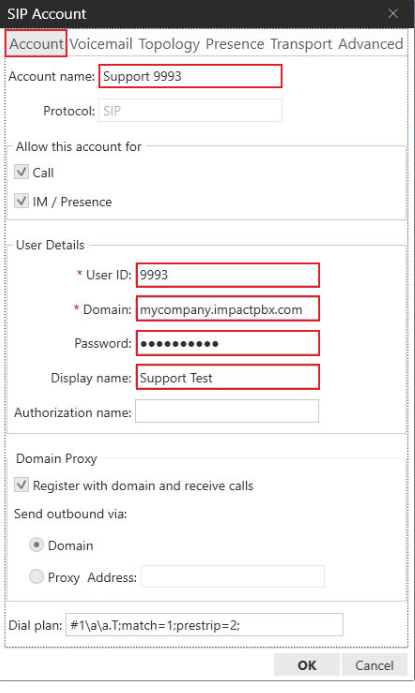
In the “Account” tab, firstly create a random Account name.
-
User ID: Your extension number.
-
Domain: The domain/host of your PBX received from your admin.
-
Password: Your extension password.
-
Display name: The name your colleagues will see when you call them.
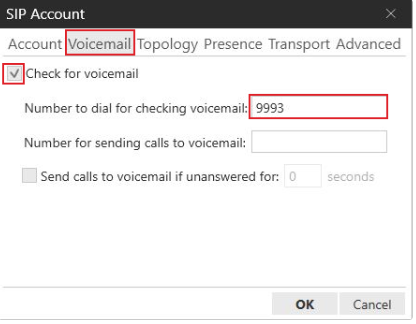
2. If you want to make use of the voicemail icon, go to the “Voicemail” tab.
-
Check the box “Check for Voicemail”
-
Provide your extension number as this is the method to call your voicemail in Impact PBX.
A voicemail icon will appear in the main screen of the Xlite softphone. You can call your voicemail by clicking on it . Please keep in mind that you will be asked for your voicemail PIN which was sent by your admin.
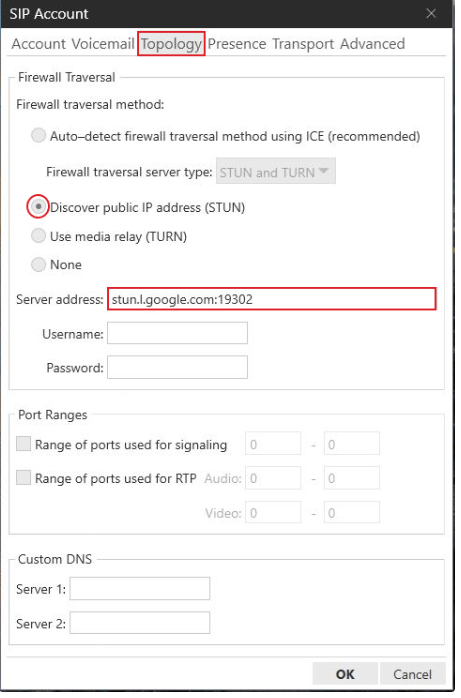
3. Go to the“Topology” tab and provide a STUN server.
-
Check the radio button "Discover public IP address" (STUN)
-
Provide in “Server address”: stun.l.google.com:19302
This is very important for addressing connection and call quality issues.
4. Go to the “Transport” tab and select “UDP”. This is required so that STUN can work.
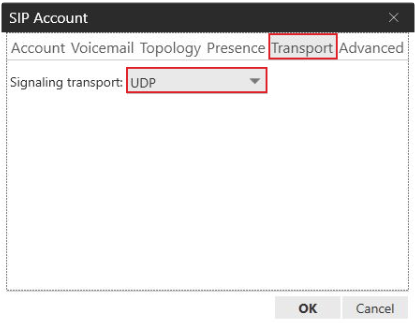
When done please click “OK” to save the settings.
5. The codecs settings are also very important for connection and call quality. When in the home screen, please go to “Softphone” > “Preferences”. Go to the section “Audio Codecs”.
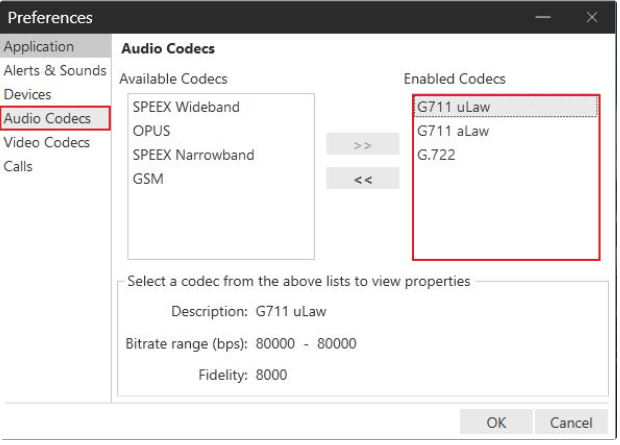
Make sure that the G711 and G.722 Codecs are enabled in the right window and all the others on the left.
Click OK and you are all set!
You should see the following home screen with the extension connected.
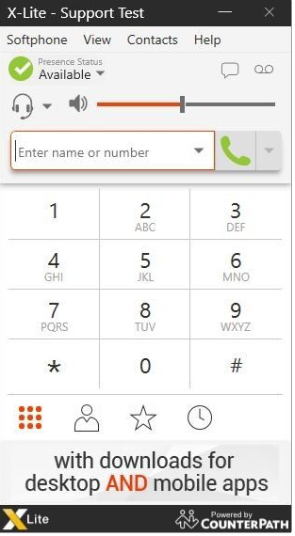
If the extension does not connect, please check your account settings again or speak to your admin.
Remember to always dial using the international dialing format using “00” or “+”, unless advised otherwise.
Please Note: It is very important to carry out all the configuration steps for best connection and quality. When configuring the Android or iOS version you must apply similar settings, just bear in mind that the interface might be different. In addition to your account information (extension, domain, password), you always need to add a STUN server. For best results make sure the transport is UDP and the right codecs are activated.